Create VM im Azure
0. Login
Log into https://portal.azure.com
1. Create a Resource Group
Azure collects all items in "Resource Groups".
You will need at least one resource group.
We recomment to use names that others direclty understand as you cannot rename them.
E.g. "Tests", "SourceImages", ...
(RR will create additional resource groups for the VMs it creates)
A resource groups is linked to
- Subscription (The Azure billing account)
- Region (The data center with the hardware: USA/Europe/...)
We recommend to create a test resource group for creating VM images and test other stuff.
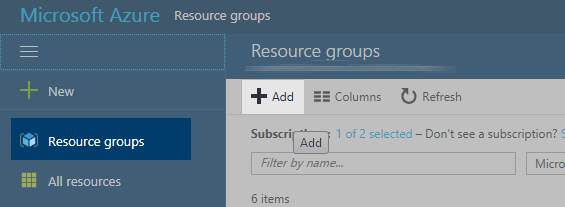
To create a new resource group, choose Resource Group from the menu and press the +Add button.
Name it for example "mySourceGroup"
2. Virtual Network
We need a Virtual Network to create any VM.
You can either create one during the VM creation (step 4).
Or you create one now, perhaps even the right network that you will use for rendering.
Note:
RR offers to create a Virtual Network with a VPN connection to your company for you, see help page "Create VPN".
3. Storage
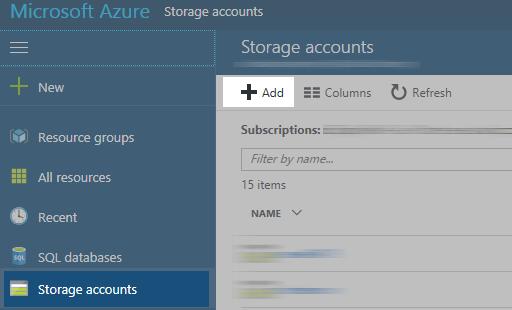
You will need at least one storage for the source image.
We will use the same storage for the VM that we use to create the image.
Notes:
- Storage names have to be unique between all users in the Azure. You can only use lowercase letters and numbers.
- The deployment model has to be "Resource manager" (actually for everything you do in Azure).
- Premium can be used, but is not required at all. It costs more.
- Replication: This is about data security. LRS is fine. (If an Earthquake or a Nuke hits the data center your data is lost as it is saved in one location only)
- Encryption is not required.
4. Create a VM
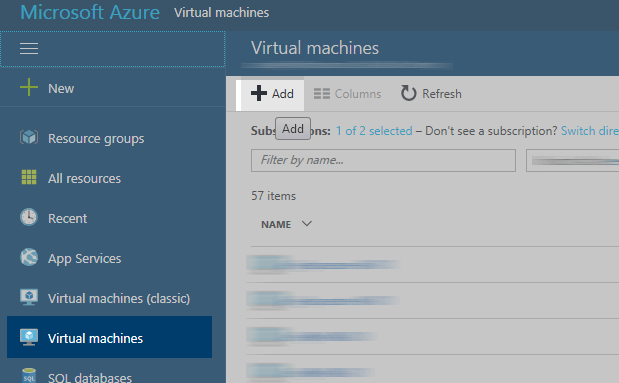
Select Virtual Machines from the menu and press the +Add button
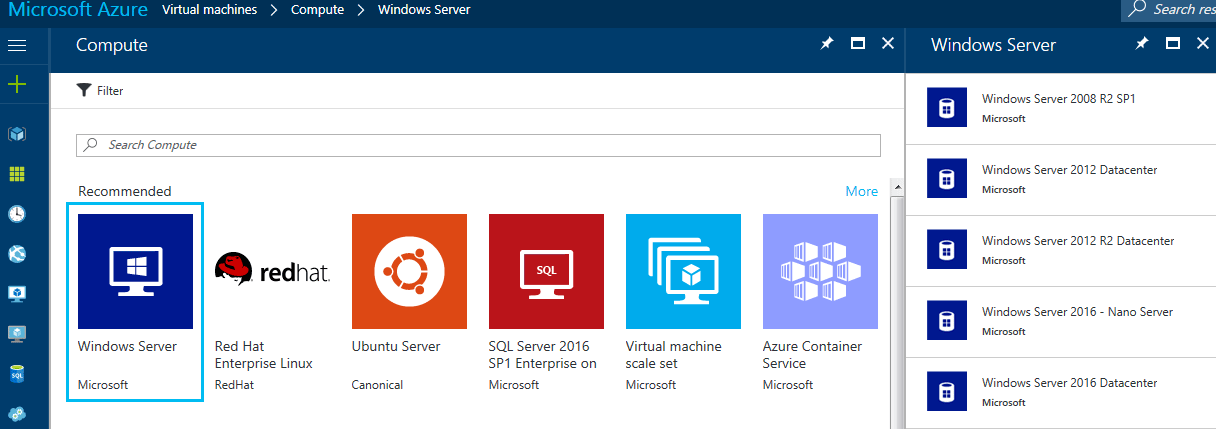
Choose the OS you want to use. OS Notes:
- Windows Server will cost license fees, Linux does not.
- Windows: We recommend Windows 2016 Datacenter (requires 13,2 GB) or Windows 10 (Once available in late 2017)
- Linux: We recommend CentOs 7.3
- 30GB images require less time to create, boot and shutdown. Depending on your render applications you install, this could be enough.
- If you want to use the image for GPU rendering, you should select the same type of GPU for this base image. Then you can install the NVidia drivers.
Of course GPU images with the driver files added to Windows can be used for non-GPU machines.
VM Notes:
- Basics
- The user/pass is required to remote login on the machine.
- The disk type (SDD, HDD) does not matter besides there are more HDD type VMs (which are cheaper).
On the other side SDDs are faster and you spend less time installing software.
- Size:
- The "Size" (VM type) does not matter as we will only use an image of the VM afterwards.
Therefore you can choose almost the cheapest one. (Not less than 2GB memory and at least 2 cores to install everything faster)
It does only matter if you want to use a GPU machine. In this case you have to use the same GPU type to install the NVidia drivers.
(On the other side, GPU images can be used for non-GPU machines)
- Settings:
- NO managed discs. We want to have our VHD file where we want to.
- Choose your storage created in step 2, do not create a new one.
- If you have created a Virtual network, please select it, otherwise let Azure create one.
- Public IP:
If you have a VPN connection to the Azure Virtual Network, then you can use the local IP.
Otherwise you have to assign a Public IP to your VM. You can later remote-connect to the VM by entering this public web address/name. - Network Security Group (Firewall): Do not remove the RDP inbound rule. Otherwise you cannot connect to your VM via the Windows Remote Desktop Connection app.
- If you use diagnostics, we recommend not to create a new storage for an better overview of your Azure items.
5. Remote Connect
Remote Connect
- Wait about 7-12 minutes until the VM was created. The status has to be "Running".
- Open the Remote Desktop Connection or an SSH application (RR/bin/3rdparty/...putty) on your workstation and use the local ot public IP of the VM (as shown on the portal).
If you have assigned a public IP, then use the connect button to open a connection
Windows notes: It is recommended to change the options of the RDP connection.
This is not possible if you use this connect button.
You have to start Remote Desktop yourself and enter the IP of the VM.
Recommended Changes: - Lower the resolution that the remote window is smaller that your workstions desktop.
- Allow a file share connection to access files from your workstation at the VM. (In case you do not download apps directly via a browser)
- Use the user/pass that you have assigned during the creation and log in.